Oversized images are one of the most common causes of slow WordPress website loading. By converting JPG and PNG to WebP or AVIF formats, you can typically reduce image size by 30%–70%, significantly improving page load speed, Core Web Vitals scores, and reducing bounce rates.
This article usesConverter for Media(formerly WebP Converter for Media) as an example to explain how to complete WordPress image compression and format conversion in an Nginx server environment, and properly configure Cloudflare caching to avoid „image format errors“ or „plugin detection failures.“
If you use WP Panel to manage your site, this article will indicate which panel entry to use for adding Nginx rules.
Reference documentation:
- Configuration for Nginx server
- Configure Cloudflare Caching to use with the Converter for Media plugin
- Cloudflare Vary for Images
1. Why Perform WordPress Image Compression and Format Conversion?
- WebP is approximately 25%–35% smaller than JPEG, and AVIF is even 20%–50% smaller than WebP.
- Reduced image size directly affectsLCP (Largest Contentful Paint), an important metric of Google Core Web Vitals.
- Faster loading speed improves user experience,making it easier to boost SEO rankings and conversion rates。
- Using plugins like Converter for Media, you can automatically return WebP or AVIF based on browser support without modifying image URLs, ensuring compatibility with older browsers.
2. What Rules Need to Be Manually Added in an Nginx Environment?
Apache servers can usually take effect automatically via.htaccess, butNginx does not support.htaccess. When you enable the plugin, the plugin interface will prompt:
Server configuration error
For Nginx servers, please contact your hosting technical support to make the plugin work properly. Your server requires additional configuration, but your hosting technical support will handle it.
Therefore, we need to manually add Nginx configuration to the server for the plugin to work correctly.
2.1 Write Nginx Rules in WP Panel
After logging into WP Panel, follow this path:
Website Management -> Website Details -> Nginx Custom Configuration -> Server-level Configuration
Paste the official rules below:
# BEGIN Converter for Media
set $ext_avif ".avif";
if ($http_accept !~* "image/avif") {
    set $ext_avif "";
}

set $ext_webp ".webp";
if ($http_accept !~* "image/webp") {
    set $ext_webp "";
}

location ~* ^/wp-content/(?<path>.+)\.(?<ext>jpe?g|png|gif|webp)$ {
    add_header Vary Accept;
    add_header Cache-Control "private";
    expires 365d;
    try_files
        /wp-content/uploads-webpc/$path.$ext$ext_avif
        /wp-content/uploads-webpc/$path.$ext$ext_webp
        $uri =404;
}
# END Converter for Media
After saving, WP Panel will automatically perform an Nginx syntax check. The configuration will only take effect if it is valid; the panel will prevent incorrect configurations from being written to avoid Nginx damage.
Using Baota Panel? Refer to:Modifying Nginx Configuration in Baota Panel to Support Converter for Media Plugin
2.2 Why Must It Be Placed in Server-level Configuration?
The rules for Converter for Media need to be inserted into the current site's server { ... } block, and must be placed before other image static resource locations. WP Panel's Server-level configuration is inserted into the early part of the site's Nginx configuration, making it suitable for such plugin rules.
3. What Does the Plugin Prompt „HTTP Request Is Cached“ Mean?
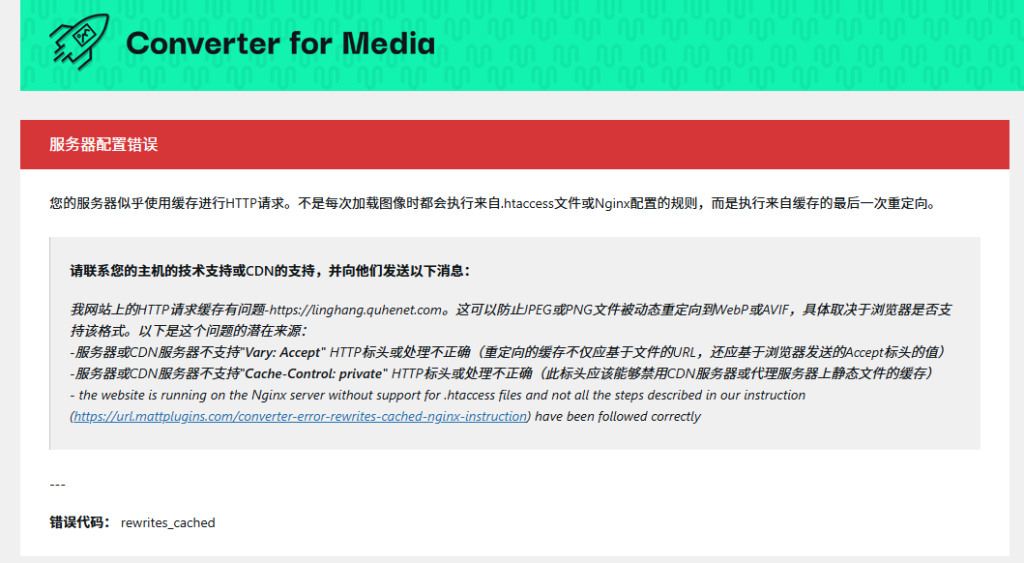
Even after adding the rules, the plugin backend may still prompt:
Your server seems to cache HTTP requests. The rules from the
.htaccessfile or Nginx configuration are not executed on every image load; instead, the last cached redirect is executed.
This is usually not due to incorrect Nginx rules, but because the CDN or cache layer does not properly handle these two response headers:
Vary: Accept
Cache-Control: private
Converter for Media determines whether to return WebP or AVIF based on the Accept header in the browser request. For the same JPG/PNG URL, supported browsers may receive WebP/AVIF, while unsupported browsers get the original image. If the CDN caches only by URL and not by Accept, the following issues may occur:
- WebP-supported browsers receive JPG;
- Non-WebP-supported browsers receive WebP;
- The plugin keeps prompting cache anomalies;
- Cloudflare response headers show
CF-Cache-Status: HIT, but the request never reaches the origin Nginx.
4. How to Handle Cloudflare Free Plan?
For the CDN to correctly cache such dynamic image responses with the same URL but different formats, the CDN must support caching based on the Accept header. Cloudflare's capability for this is called Vary for Images。
According to Cloudflare's official documentation,Vary for Images is only supported in Pro, Business, and Enterprise plans, not in the Free plan.。
Therefore:
- Cloudflare Free users: It is not recommended to cache converted images under
/wp-content/uploads/*. Requests should go back to origin, and Nginx should return the correct format based onAccept. - Cloudflare Pro / Business / Enterprise users: You can configure the Cloudflare API Token and Zone ID according to the Converter for Media official documentation, allowing the plugin to automatically complete Cloudflare image caching configuration.
- If Free plan users force cache images, the plugin may report HTTP request caching anomalies, or different browsers may receive mismatched image formats.
In other words, Cloudflare Free is not „no configuration needed,“ but rather „does not support caching images based on Accept header differentiation.“ Free plan users who want to ensure plugin detection passes and image format compatibility should bypass such dynamic image caching.
But here's the problem: if the caching rules bypass caching for resources under the uploads directory, wouldn't the website's largest traffic-consuming resources not go through the CDN? So, we can use another approach to ensure webpage images still use CDN traffic.
5. Compatibility Handling between Cloudflare Free and Converter for Media
As mentioned in point 4, because Cloudflare Free does not support automatic image caching based on Accept header differentiation, even if you convert all images to WebP format using the plugin, when CDN requests are made, it ignores the server's automatic image detection rules by default and directly serves the original image, regardless of whether WebP exists.
At this point, we can use the HTML5 <picture> tag to output both WebP and original image formats.
Copy and paste the following code into your theme's functions.php file.
/**
 * WordPress + Cloudflare Free + Converter for Media
 * 仅在 WebP 文件真实存在时,将 jpg/png 图片包装为 picture。
 * 支持 uploads 目录 + 当前主题目录图片。
 */

function nbj_get_webp_info($src, $uploads) {
    $src_raw  = html_entity_decode($src);
    $src_path = parse_url(esc_url_raw($src_raw), PHP_URL_PATH);

    if (!$src_path || strpos($src_path, '..') !== false) {
        return false;
    }

    /**
     * 1. 处理媒体库 uploads 图片
     */
    $uploads_baseurl = $uploads['baseurl'];
    $uploads_basedir = $uploads['basedir'];

    $uploads_base_path = parse_url(esc_url_raw($uploads_baseurl), PHP_URL_PATH);

    if ($uploads_base_path && strpos($src_path, $uploads_base_path . '/') === 0) {
        $relative = ltrim(substr($src_path, strlen($uploads_base_path)), '/');

        if (!$relative) {
            return false;
        }

        $webp_url  = str_replace('/wp-content/uploads/', '/wp-content/uploads-webpc/uploads/', $src_raw) . '.webp';
        $webp_path = dirname($uploads_basedir) . '/uploads-webpc/uploads/' . $relative . '.webp';

        return [
            'url'  => $webp_url,
            'path' => $webp_path,
        ];
    }

    /**
     * 2. 处理当前主题目录图片
     * 规则:/wp-content/themes/your-theme/xxx.jpg
     * 对应:/wp-content/themes/your-theme/xxx.jpg.webp
     */
    $theme_baseurl = get_stylesheet_directory_uri();
    $theme_basedir = get_stylesheet_directory();

    $theme_base_path = parse_url(esc_url_raw($theme_baseurl), PHP_URL_PATH);

    if ($theme_base_path && strpos($src_path, $theme_base_path . '/') === 0) {
        $relative = ltrim(substr($src_path, strlen($theme_base_path)), '/');

        if (!$relative) {
            return false;
        }

        $webp_url  = $src_raw . '.webp';
        $webp_path = rtrim($theme_basedir, '/') . '/' . $relative . '.webp';

        return [
            'url'  => $webp_url,
            'path' => $webp_path,
        ];
    }

    return false;
}

function nbj_wrap_webp_picture($content) {
    if (is_admin() || is_feed() || (defined('REST_REQUEST') && REST_REQUEST)) {
        return $content;
    }

    if (stripos($content, '<img') === false) {
        return $content;
    }

    $uploads = wp_upload_dir();

    // 支持 jpg/png,以及 jpg/png 后面带 query string 的情况
    $pattern = '/<img\b[^>]*\bsrc=(["\'])([^"\']+\.(?:jpe?g|png)(?:\?[^"\']*)?)\1[^>]*>/i';

    return preg_replace_callback($pattern, function ($m) use ($uploads) {
        $img_tag = $m[0];
        $src     = html_entity_decode($m[2]);

        if (
            strpos($img_tag, 'data-nbj-webp') !== false ||
            strpos($src, 'uploads-webpc') !== false ||
            strpos($src, '.webp') !== false
        ) {
            return $img_tag;
        }

        $webp = nbj_get_webp_info($src, $uploads);

        if (!$webp || !is_file($webp['path'])) {
            return $img_tag;
        }

        $img_tag = preg_replace('/<img\b/i', '<img data-nbj-webp="1"', $img_tag, 1);

        return '<picture data-nbj-webp="1">'
            . '<source srcset="' . esc_url($webp['url']) . '" type="image/webp">'
            . $img_tag
            . '</picture>';
    }, $content);
}

add_filter('the_content', 'nbj_wrap_webp_picture', 999);
add_filter('widget_text_content', 'nbj_wrap_webp_picture', 999);

add_action('template_redirect', function () {
    if (
        !is_admin()
        && !is_feed()
        && !(defined('REST_REQUEST') && REST_REQUEST)
        && ob_get_level() === 0
    ) {
        ob_start('nbj_wrap_webp_picture');
    }
});
After adding this code, when WordPress outputs content on the frontend, it will first check and add <picture> tags to all image files under the uploads directory.

Browsers that support WebP format (by 2026, it's hard to find devices that don't support it) will default to reading the first source's WebP image. If this image does not exist or has not been converted yet, it will fall back to the PNG original image below (devices that do not support WebP will directly read the original image, ignoring WebP).
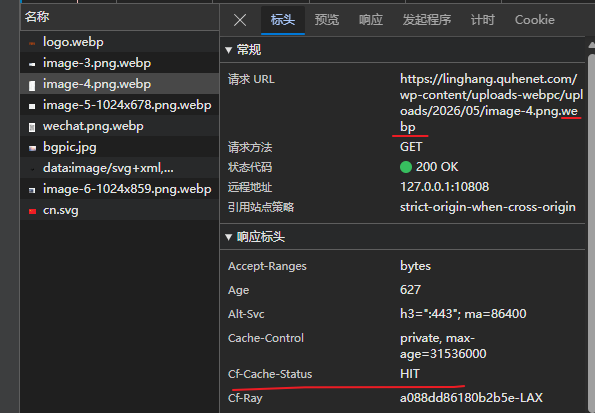
So, even if you are a Cloudflare Free user, you can now have browsers display WebP images while still using CDN traffic.
6. Final Recommendation: Correct Approach for WordPress Image Compression and Speed Optimization
For most WordPress site owners using Cloudflare Free, the recommended process is as follows:
- Install and activate the Converter for Media plugin.
- Add the official rules in WP Panel's Server-level Nginx custom configuration.
- Add the HTML5 <picture> tag code to the theme's functions.php file.
- Clear the website and CDN cache once to refresh resources.
Simple summary:
Origin Nginx handles image format conversion; Cloudflare handles global acceleration.
With the above configuration, your WordPress site can fully leverage the compression advantages of WebP/AVIFwhile maintaining compatibility with older browsers, achieving stable and sustainable image loading speed improvements.
Why did I cross out AVIF? Because this format conversion consumes more server resources, usually requiring third-party conversion services that are paid. Typically, WebP + CDN already provides good speed improvements.