When maintaining websites and servers, the biggest fear is data loss. Hard drive failures, ransomware, or even accidental operations—any incident could wipe out an entire WordPress site. Traditional FTP backups and local backups are clearly not secure enough; while SSH/rsync remote backups are reliable, they require another server or VPS and have a high configuration threshold. Now,WP Panel has added an S3-compatible object storage backend for remote backups, allowing you to use cloud object storage like Cloudflare R2, AWS S3, MinIO, or Backblaze B2 to store backups—secure, affordable, and hassle-free.
Why Choose S3-Compatible Object Storage?
Object storage is inherently designed for massive data, offering low cost and high reliability. Take Cloudflare R2 as an example:egress traffic is free, with a 10GB free tier, which is sufficient for most WordPress sites. Moreover, WP Panel implements the S3-compatible protocol, meaning you can freely switch between providers like AWS S3, MinIO (self-hosted), Backblaze B2, etc., without vendor lock-in. Compared to previous SSH/rsync remote backups, object storage eliminates the need to maintain a remote server and offers a more intuitive configuration.
Two Core Improvements
- New S3 Backend: The settings page allows you to freely switch between SSH/rsync and S3-compatible object storage. Servers already configured with rsync will retain their default behavior after upgrade, ensuring full backward compatibility.
- Large File Chunked Upload: The S3 backend supports Multipart Upload. Backup files exceeding a certain size are automatically chunked and uploaded; on failure, the upload is automatically aborted and residual chunks are cleaned up. Small files continue to use single PUT uploads for optimal performance.
Hands-On: Configuring WP Panel Remote Backup on Cloudflare R2
The entire configuration process takes only 5 steps. We'll demonstrate using the most popular Cloudflare R2 as an example.
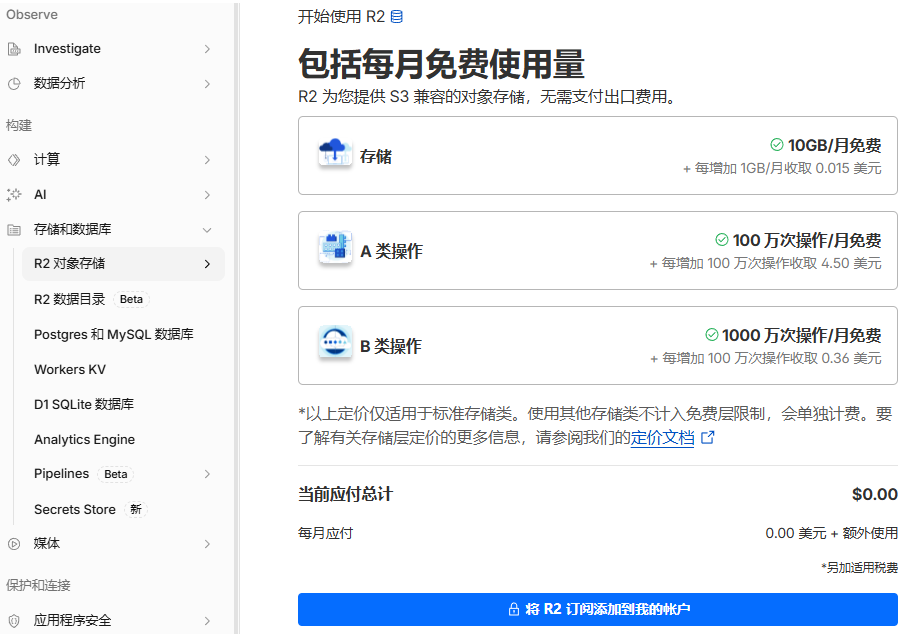
Step 1: Register for Cloudflare and Enable R2 Object Storage
Log in to the Cloudflare console, and find 「R2 Object Storage」 in the left menu. If you are a new user, you can subscribe to the free tier of 10GB storage and 10 million operations per month. Click the 「Subscribe」 button shown in the image below.
Step 2: Create a Storage Bucket
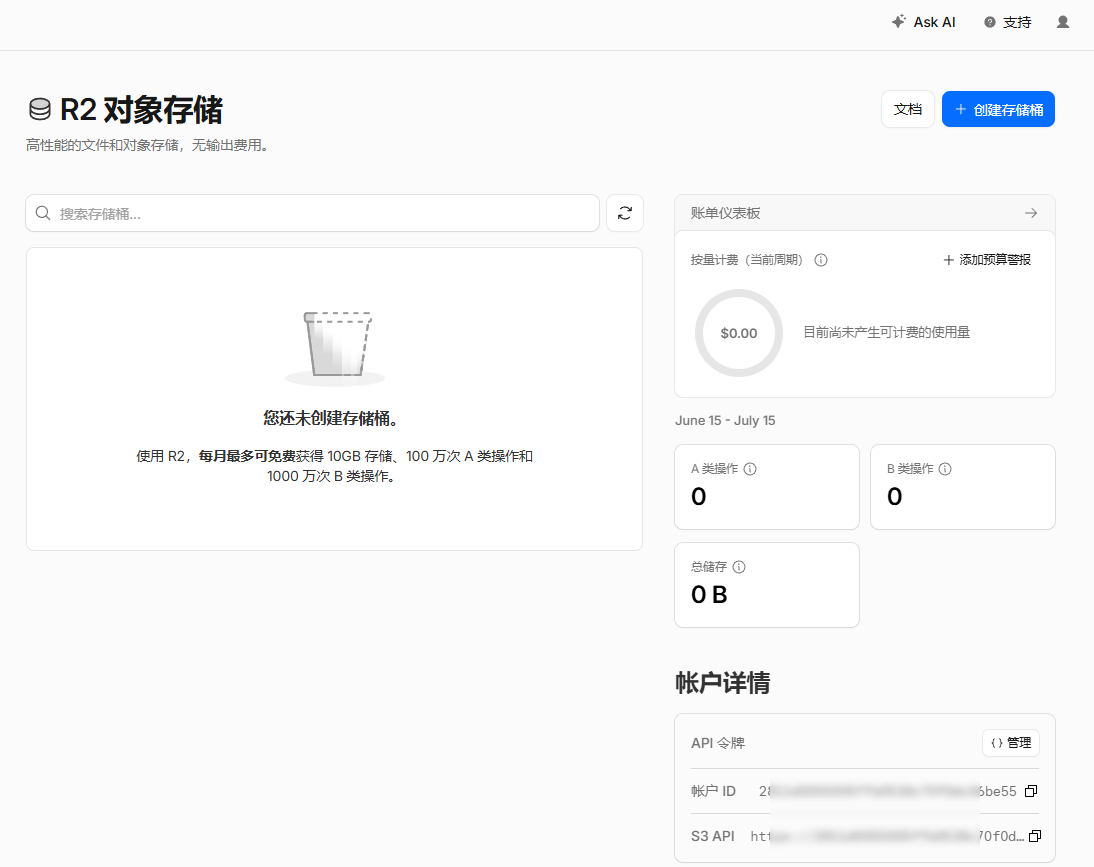
Go to the R2 overview page and click the 「Create Bucket」 button in the top right corner.
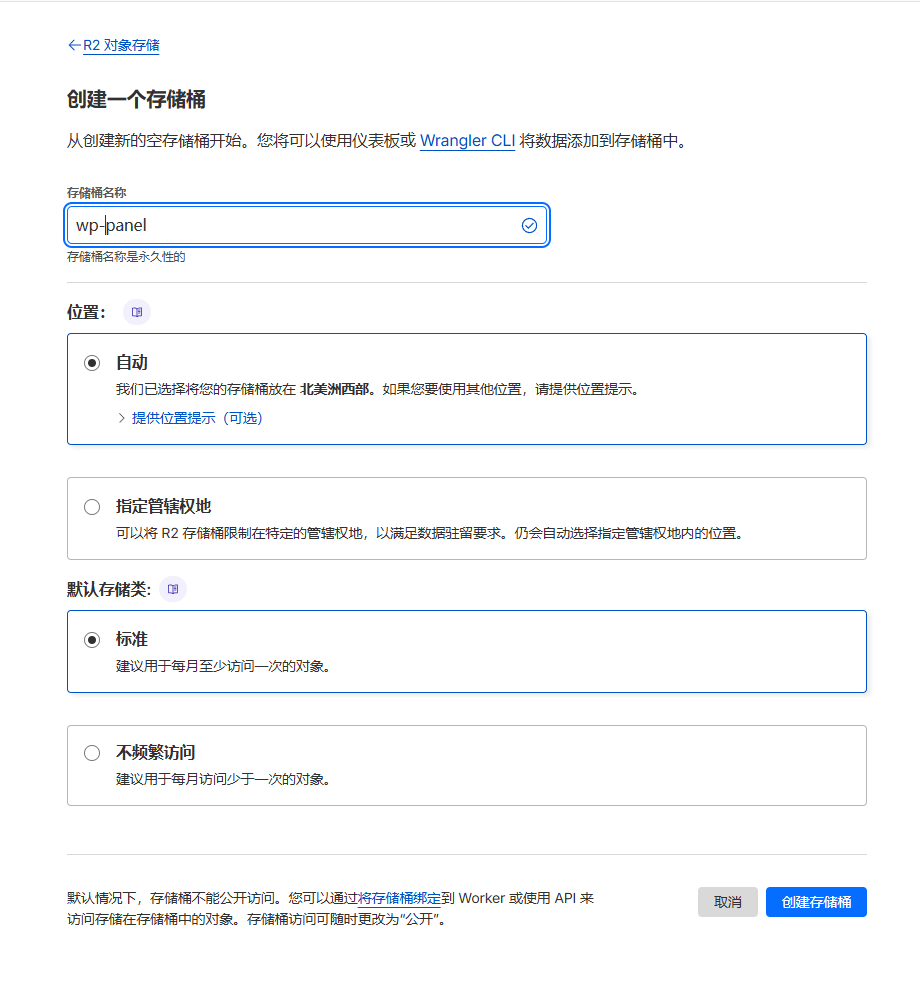
In the popup, fill in the bucket name (e.g., wp-panel), select 「Standard」 for storage class, keep other settings as default, and click 「Create Bucket」.
Step 3: Generate an API Token
Return to the R2 overview page and click 「Create Account API Token」.
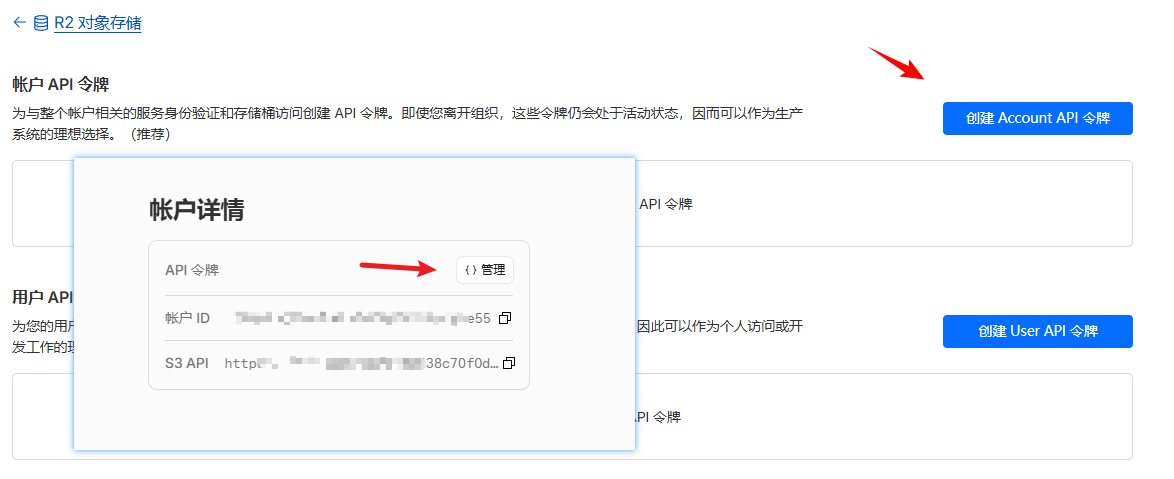
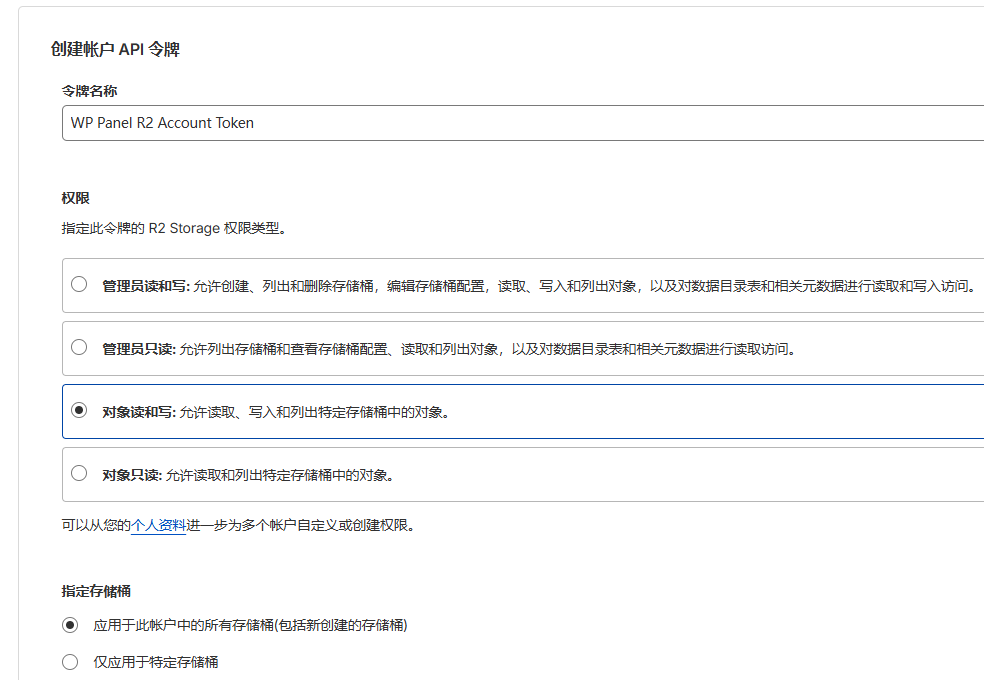
Select 「Object Read and Write」 for permissions (since we only need backup and restore operations), fill in the token name arbitrarily, and click 「Create」.
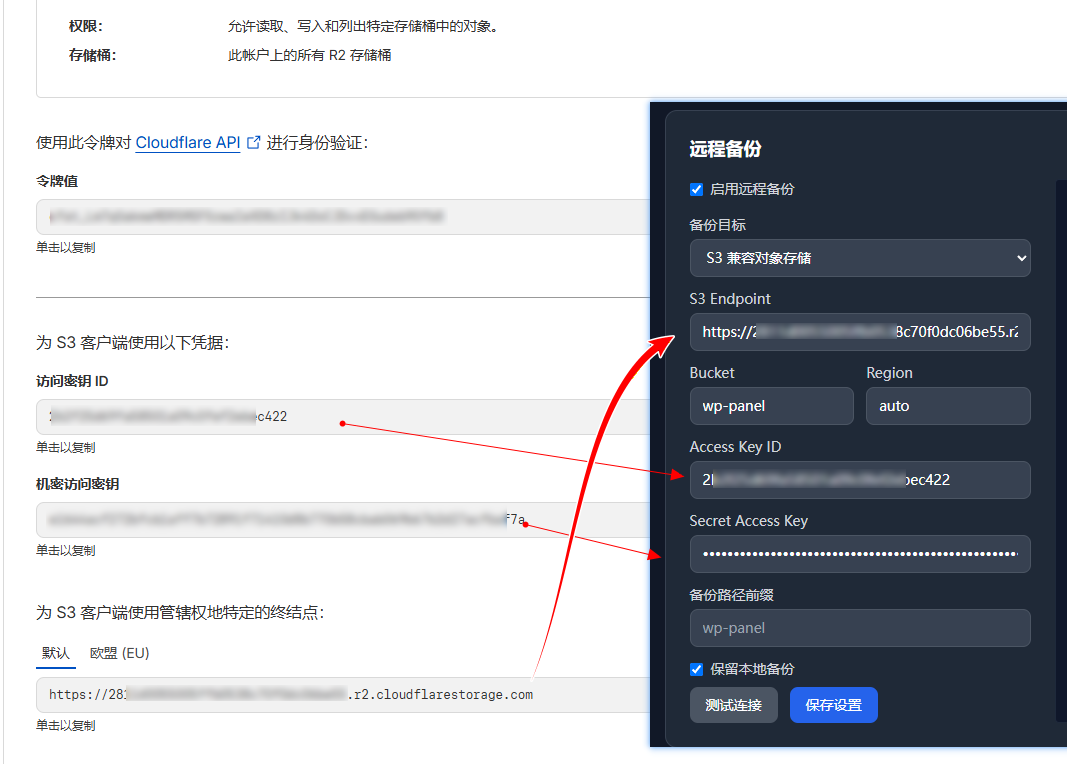
After creation, you will see the Access Key ID and Secret Access Key. Please copy and save them securely (the Secret value cannot be viewed again after closing the page).
Step 4: Configure Remote Backup in WP Panel
Log in to the WP Panel backend, navigate to 「Panel Settings」 → 「Remote Backup」 settings card. If remote backup is not enabled, enable it first. Select 「S3 Compatible Object Storage」 from the 「Backup Target」 dropdown menu.
Then fill in the following configuration items:
- Endpoint: The dedicated endpoint for Cloudflare R2, formatted like
https://<accountid>.r2.cloudflarestorage.com(can be found on the R2 overview page). - Bucket: The name of the bucket you just created, for example
wp-panel。 - Region: For Cloudflare R2, fill in
auto。 - Access Key ID / Secret Access Key: The token generated in the previous step.
- Path Prefix(optional): If you want to create a subdirectory within the bucket to distinguish server backup data, you can fill in
vps1/。
Step 5: Test the Connection and Save
After filling in, save, and then click the 「Test Connection」 button. WP Panel will initiate a short-timeout connection test to the specified Endpoint to ensure credentials and network are normal. After the test passes, your daily automatic backups will be directly uploaded to Cloudflare R2 object storage (special note: if switching from the previous rsync backup method to S3 backup, you need to manually upload all files in the backup directory; otherwise, the default incremental backup will not upload previous backup data to R2 object storage).
More Stable Large File Backups: Multipart Upload Support
When the site data volume is large, backup files can easily reach hundreds of MB or even GB. Simple PUT uploads in the past were prone to overall failure during network fluctuations. WP Panel implementsautomatic multipart upload(Multipart Upload) for the S3 backend. During upload, large files are split into multiple small parts and uploaded in parallel. Even if a part fails, the system automatically aborts the upload and cleans up residual parts to avoid filling up the bucket. Small files continue to use single PUT to save overhead. Additionally, the timeout for S3 file uploads has been adjusted to a longer timeout suitable for backup scenarios, while the connection test remains short, ensuring they do not interfere with each other.
More Tips for Secure Backups
Data backup is just one part of the defense line.WP Panel itself provides multiple layers of security mechanismsto protect your server, such as automatically blocking malicious IPs, disabling root login, web firewall, etc. Additionally, it is recommended to regularly restore backups for verification to ensure backup files are usable. If you haven't used object storage before, you might start with Cloudflare R2, combined with WP Panel's new features, to create a cost-effective and reliable remote backup solution for your WordPress site.
Summary
WP Panel's new S3-compatible object storage remote backup allows you to easily connect to mainstream cloud storage services while retaining SSH/rsync methods for flexible switching. The addition of large file multipart upload further improves reliability. If you are looking for a more efficient and secure WordPress management tool than traditional panels, check out thedetailed comparison between WP Panel and other panelsto understand why it is suitable for site owners and operations personnel.
Now open the WP Panel backend, go to 「Panel Settings」 → 「Remote Backup」, and try configuring an S3-compatible target. Don「t wait until data loss to regret not having off-site backups!